SSH and SFTP
To login to one of the Department servers remotely, or to transfer files
between your own system and one of the Department servers, you must use
client software supporting SSH version 2.
Among your choices for SSH Windows software are the following:
- Tera Term Pro, SSH terminal, freeware.
Web site.
- FileZilla: A GUI-based file transfer client, also freeware.
Includes SFTP capabilities.
FileZilla web site.
FileZilla stores passwords in clear text. Therefore, I recommend that
passwords not be stored. Once in FileZilla, open the Edit menu, and
select Settings. From the Settings window, select the Interface page
and check the checkbox for "Do not save passwords" in the Behavior
section.
- PuTTY: SSH terminal and command line SFTP, freeware.
PuTTY web
site.
- SSH Secure Shell 3.2.9. Includes
an SSH terminal and GUI SFTP, free for educational
use. Contact Tom if you're interested in this software.
- VanDyke SecureCRT (SSH terminal) and SecureFX (GUI SFTP). Student
pricing is $20.00 each.
Student pricing application form.
If you are currently accessing our servers from a Mac/Linux system, I
recommend using the ssh/sftp software probably already installed on your
system.
Using SSH Secure Shell
-
From Start then Programs, go to SSH Secure Shell and
choose Secure Shell Client.
-
Press the Connect button:

to begin the process of connecting to a remote host.
-
A Connect to Remote Host dialog box will open:
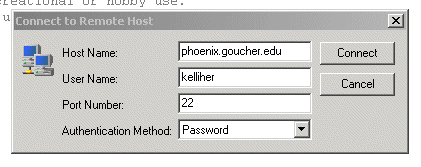
Enter Host Name and User Name and press the Connect button.
-
A Host Identification dialog box will now open:
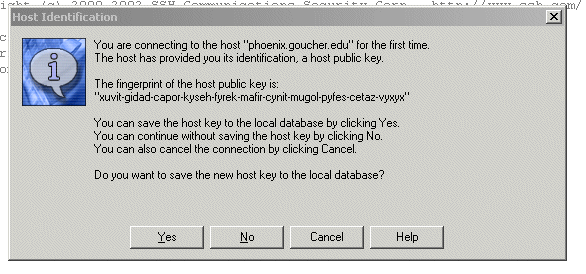
Choose Yes to save the host key to the local database. That way,
you won't be bothered with this dialog box when you connect in the future.
-
Another dialog box will appear, prompting you to enter your password. Do
so.
-
At this point, you should be connected to the host. You will be prompted
to save the host profile:
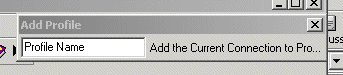
Saving the profile makes logging on the next time a bit easier. If you
aren't prompted to save the profile, just click the Profiles button
and choose Add Profile.
-
If you want to change your session settings, click on the Settings button:

After editing the settings, open the File menu and choose Save
Settings.
-
After completing your SSH session, logout from the host and close the SSH
client.
Using SSH Secure File Transfer
-
From Start then Programs, go to SSH Secure Shell and
choose Secure File Transfer Client.
-
Press the Connect button:
to begin the process of connecting to a remote host.
-
A Connect to Remote Host dialog box will open:
Enter Host Name and User Name and press the Connect button.
-
A Host Identification dialog box will now open:
Choose Yes to save the host key to the local database. That way,
you won't be bothered with this dialog box when you connect in the future.
-
Another dialog box will appear, prompting you to enter your password. Do
so.
-
At this point, you should be connected to the host. You will be prompted
to save the host profile:
Saving the profile makes logging on the next time a bit easier. If you
aren't prompted to save the profile, just click the Profiles button
and choose Add Profile.
-
If you want to change your session settings, click on the Settings button:
After editing the settings, open the File menu and choose Save
Settings.
-
Use the client to navigate to the remote host folder which you will use for
the file transfer. On your local workstation, open the folder you will use
for the transfer. Now, simply drag the desired files from one folder to
the other in order to transfer them.
-
Once you're finished transferring files, click the Disconnect button
to close your session:

Last updated May 26, 2021.
Send mail to kelliher AT DOMAIN phoenix.goucher.edu
Tom Kelliher